Updating NetVizura requires internet access
NetVizura requires an active internet connection to install the required update. After the update is successful, you can turn off internet access for the NetVizura server.
Step-by-step guide:
- Check the free space on the disk with
df -hcommand. If there is less than 8GB of free space on disk, delete some files to make at least 8GB of available space on disk (the easiest way is to delete old raw data files in the archive, which is usually located in/var/lib/netvizura/flow/archive) Download and run the script that automates the upgrade of prerequisite software:
wget https://www.netvizura.com/files/updates/netvizura-6.1-update-prerequisites-debian.sh --output-document=/tmp/update-prerequisites-debian.sh
sudo bash /tmp/update-prerequisites-debian.sh
 If presented with the dialog about Tomcat configuration files being upgraded choose answer "Keep localy installed version", which is the default. Press Enter to proceed.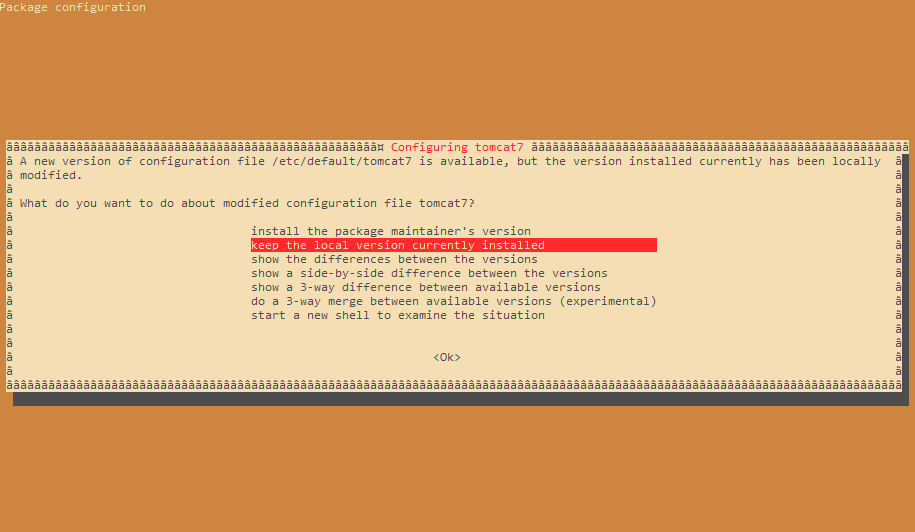
Download the update package (assumed filename is
netvizura-x.y.z-linux.deb) to the NetVizura server's/tmpdirectory and perform the update x.y.z is the NetVizura version numbersudo dpkg -i /tmp/netvizura-x.y.z-linux.deb
- Refresh your browser (Ctrl + F5)
Check update is successful: http://<netvizura_server_ip>:8080/netvizura/#settings:license
Notice
- NetVizura might not work properly if updated from more older versions. We kindly urge you to first successively update it to previous version, and then to current version.
- NetVizura will not work if update is made after support period has expired. Make sure that your support has not expired before you start updating.
- It is not possible to update NetVizura on free trial. If you want to extend your assessment for one additional month, please request a new free trial license.