Inspecting Raw Data
To inspect Raw Data go to Netflow -> Raw Data
The Raw Data chart displays throughput or volume traffic over time, depending on the selected option. You can toggle between views such as Bits/s, Packets/s, and Flows/s to analyze bandwidth usage, packet rates, or flow activity throughout the chosen time window.
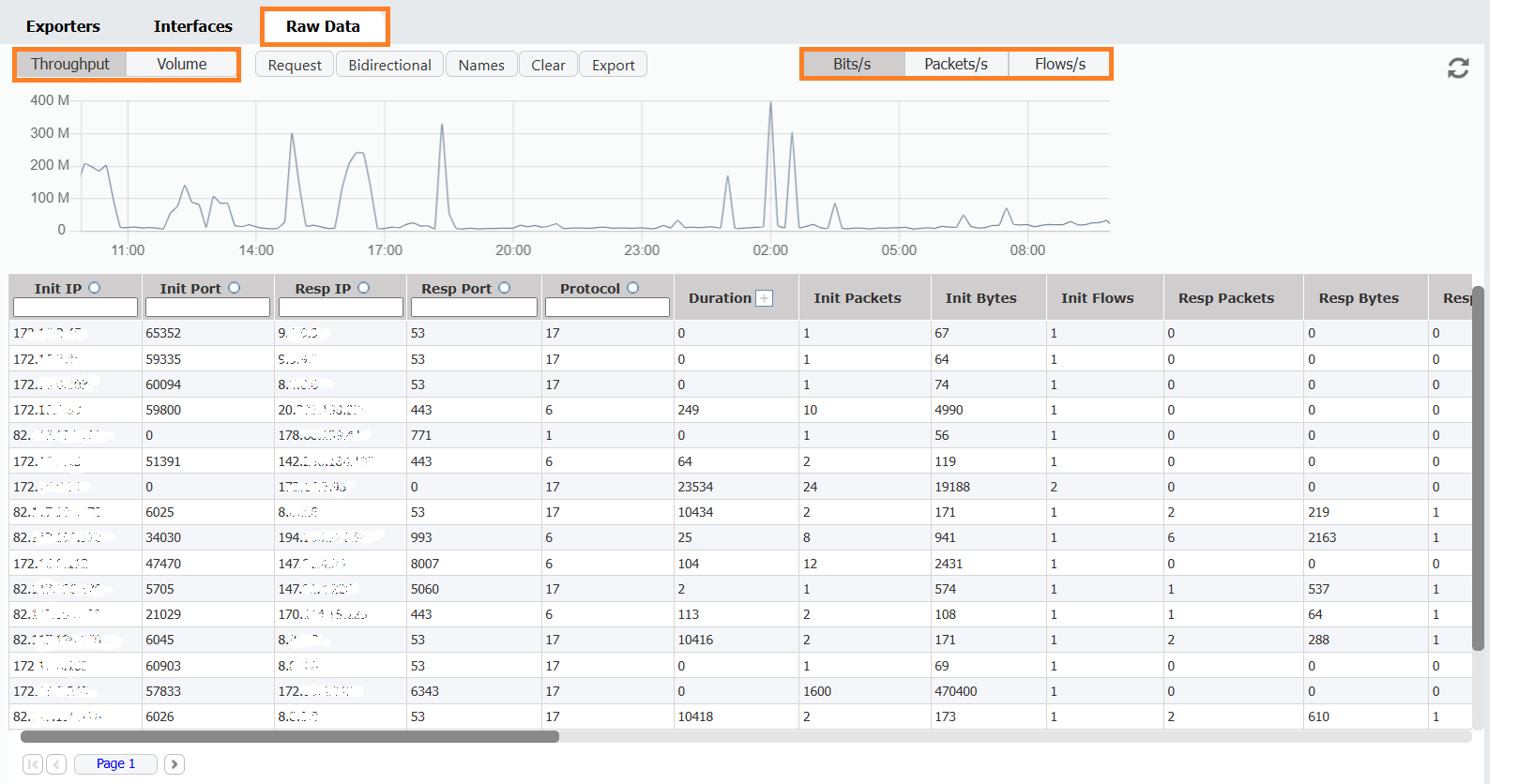
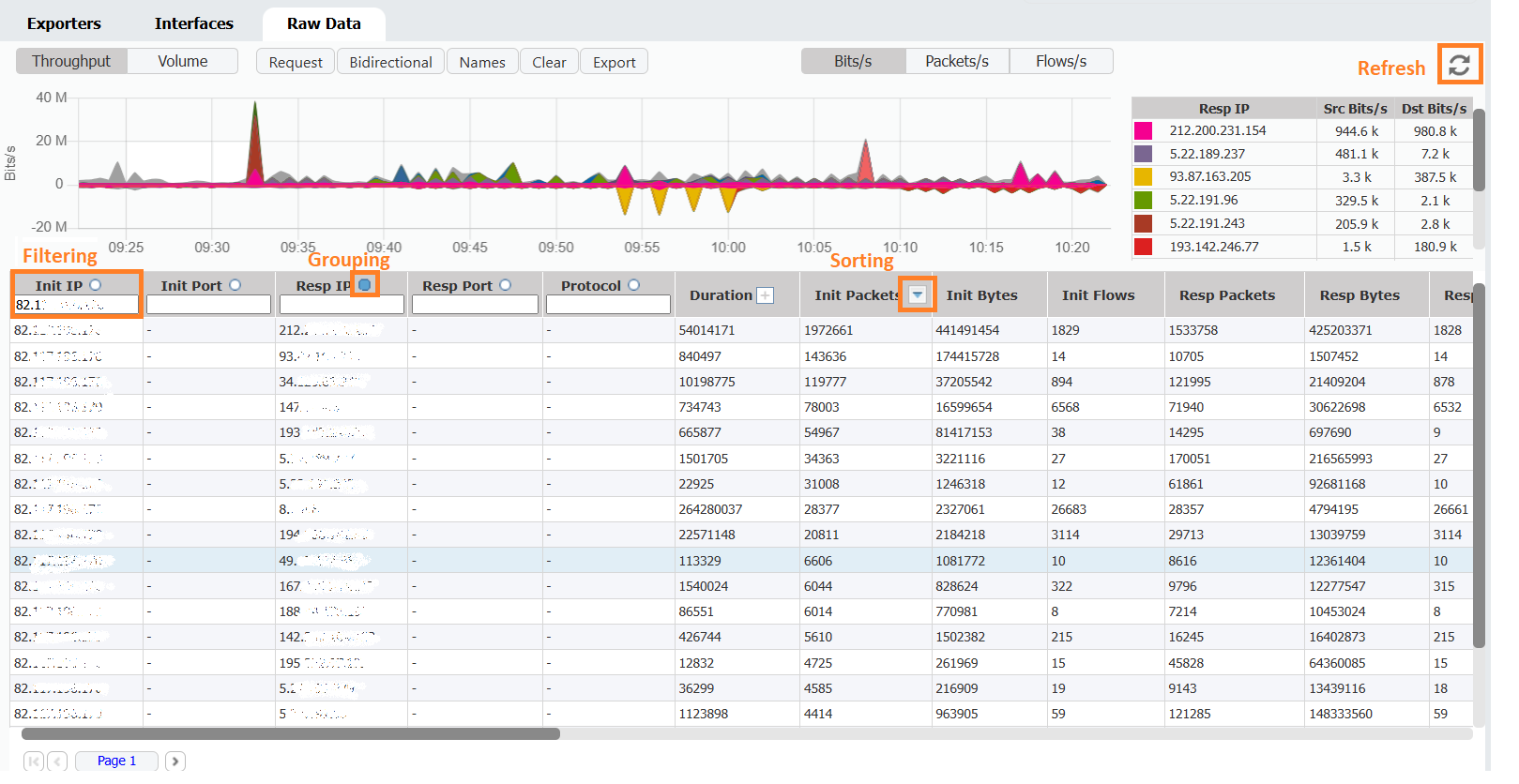
The Raw Data table displays individual flow records retrieved from the Elastic indices within the selected time window. Each row represents a network flow, including fields such as source/destination IP address, ports, protocol, packet and byte counts, and duration. Data can be filtered, grouped, and sorted by most columns. By clicking the plus icon next to the Duration field in the table, you can view the Start Time and End Time of the flow. If the End Time is missing, it typically indicates sFlow data, where duration information is not available.
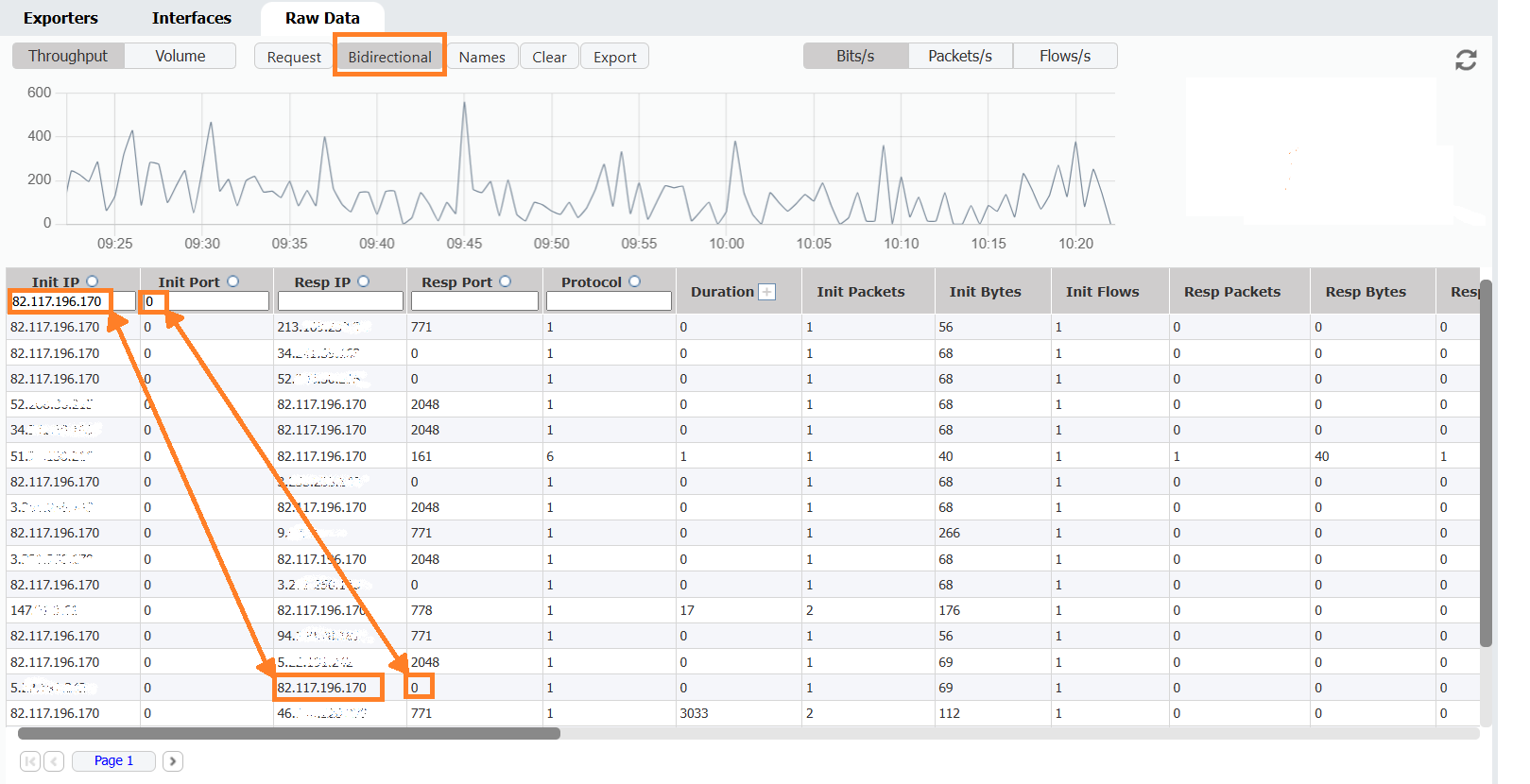
Clicking the Bidirectional button enables expanded filtering across all bidirectional column pairs. When Bidirectional filtering is enabled, any filter applied to one column will also apply to its corresponding bidirectional pair. This makes it easier to locate records involving a specific IP address or port, regardless of whether it appears as a source or destination. For instance, if a user filters for a particular IP address or port in the source columns, enabling the Bidirectional option will also return results where that IP or port appears in the destination columns—eliminating the need to know the traffic direction in advance.
The Names button provides IP address resolution and also resolves the names of other columns, such as protocol and port. If you move your mouse cursor over a specific IP address, you can see WhoIs information about that host.
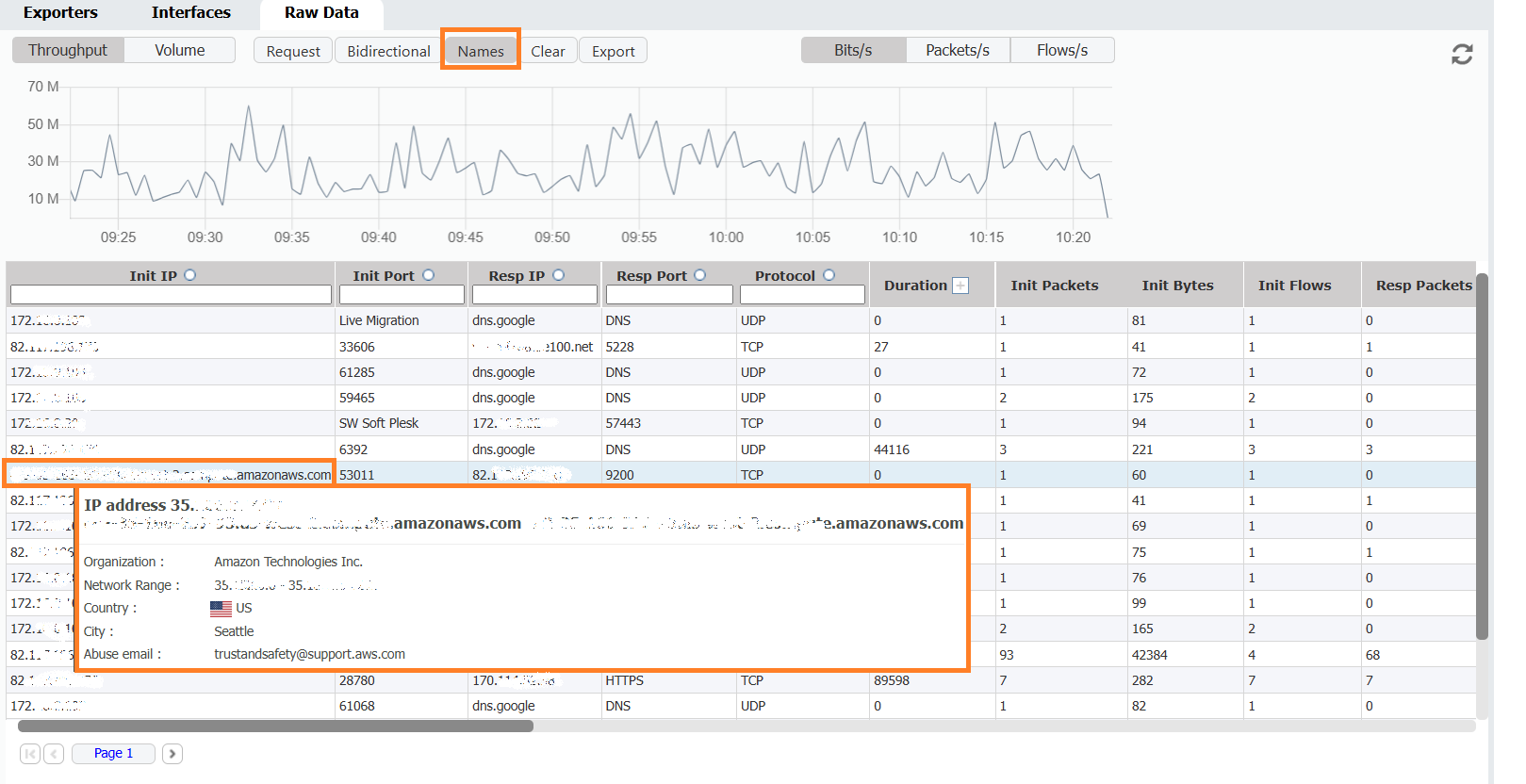
If you want to see detailed descriptions for fields in other columns, all you need to do is move the mouse cursor over that. The provided information is a detailed description from the Display Names section in Settings.
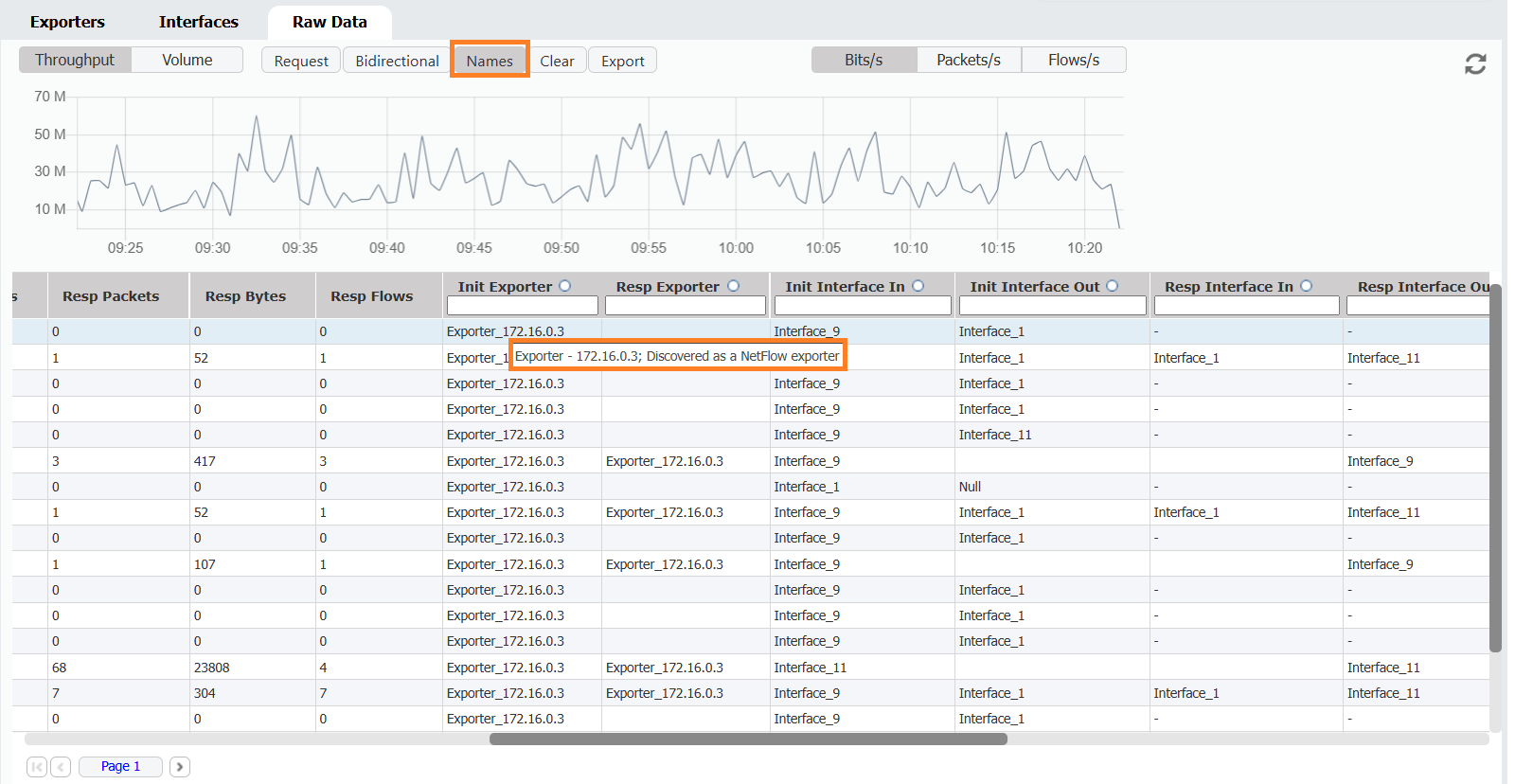
To configure Raw Data, visit Raw Data Configuration.
To enable IP address resolution, your NetVizura server must have local or remote communication with a DNS server (for Hostname Resolution) and Internet access (for WHOIS information).
Exporting Raw Data
The Raw Data table can be exported as a CSV file to present captured Netflow records as a report to a third party or for further analysis.
To export Raw Data, click on the Export button. You will be prompted with a confirmation message asking if you want to proceed with the export, along with an estimated file size. The data will then be downloaded into your browser as a ZIP file.
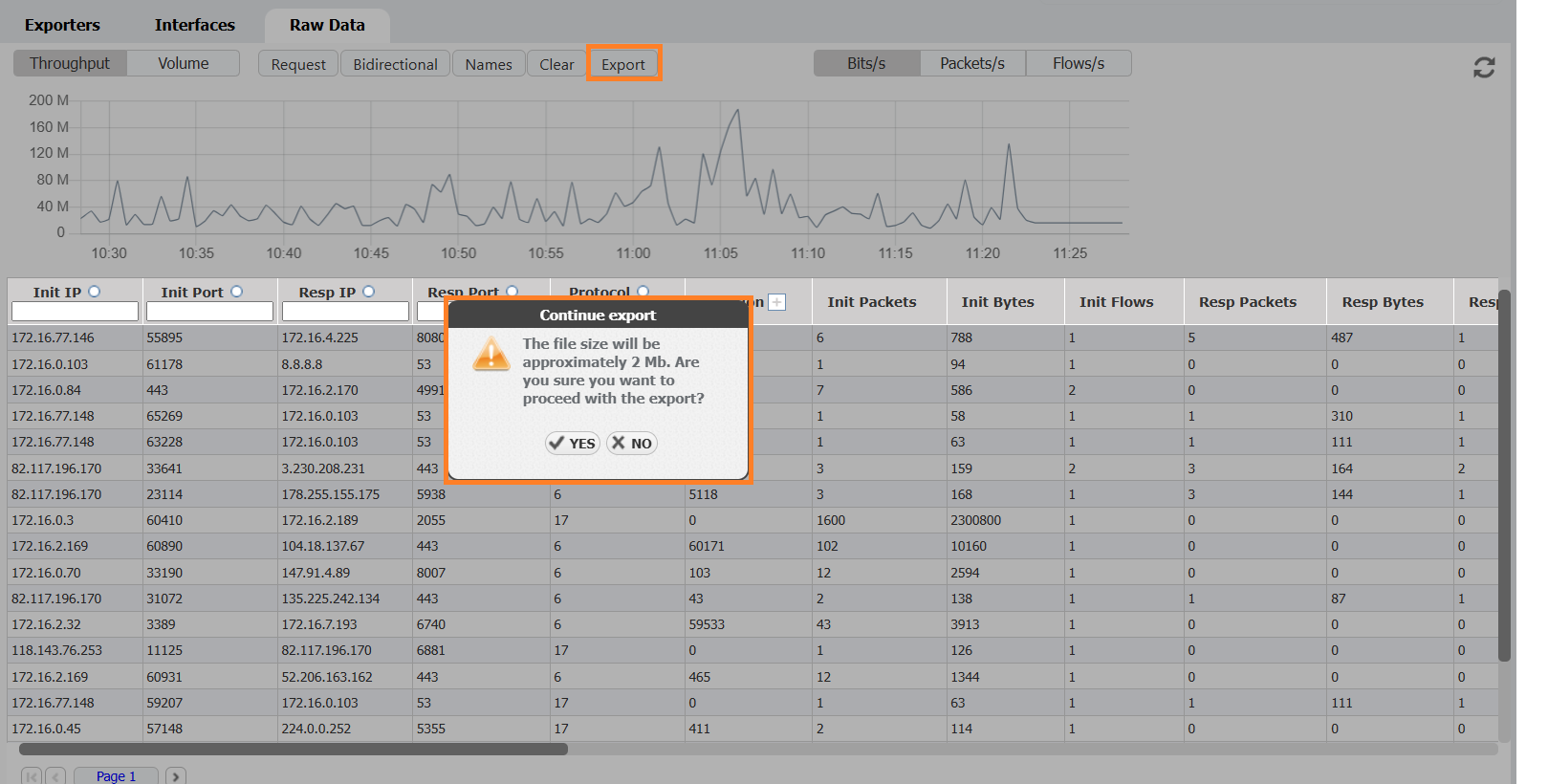
Depending on the amount of data, export can last a couple of minutes.
Moreover, your browser settings may prompt you to select a location to save the file, or it will save the file to a default folder (typically the Downloads folder). Some spreadsheet software may ask you to select a separator when opening the file - choose Comma.
Grouping, filtering, and sorting the Raw Data table will also affect the CSV, resulting in a much smaller CSV file.